Skip the Always-On VPN: Tailscale and a Free Oracle Cloud VM is all you need
When a service is region-restricted, most people reach for a VPN. I used to do the same.
The problem is that I don’t want to leave a VPN connected across my whole computer. If using ChatGPT starts with “did I turn the VPN on?” and ends with trying to remember to turn it off again, the routine gets old very quickly.
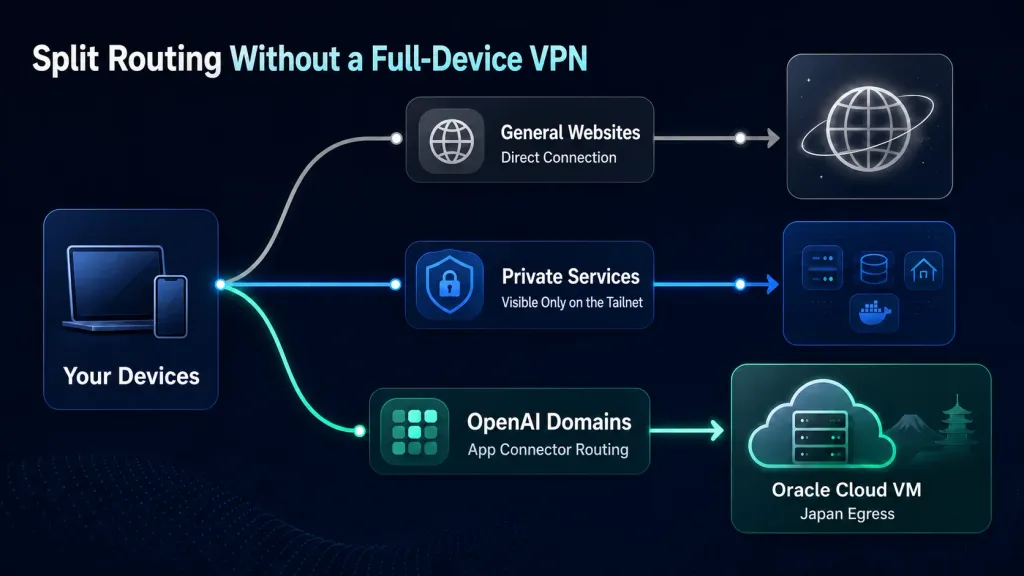
My current setup is different: Tailscale stays connected, but only OpenAI and ChatGPT traffic goes through my Oracle Cloud VM in Japan. Everything else uses the normal local connection.
An exit node is too blunt for this job
Tailscale supports exit nodes. The idea is straightforward: designate one device in the tailnet as an egress point, then send another device’s Internet traffic through it. In practice, it feels much like a conventional VPN.
An exit node is genuinely useful while travelling, on public Wi-Fi, or whenever you want to move all your traffic to another connection at once.
But I don’t want everything to go through Japan. I only want OpenAI and ChatGPT-related sites to leave through the Oracle Cloud VM while every other site continues to use my regular connection.
This is the split I want:
| Traffic | Path |
|---|---|
| Ordinary websites | Direct through the local connection |
| HomeLab services | Through the Tailscale tailnet |
| OpenAI and ChatGPT domains | Through the Oracle Cloud VM in Japan |
Tailscale App Connectors make that possible.
Domain-based split routing, in plain language
I think of a Tailscale App Connector as a domain-based routing rule.
You don’t need to replace the whole machine’s default route or maintain a long list of IP addresses. Instead, you tell Tailscale: “These domains belong to one app. Send them through this Linux device.” It’s particularly useful for SaaS products, where backend IP addresses change but domain names tend to remain more stable.
In my HomeLab, the flow looks like this:
oracle-jpis an Oracle Cloud VM in Japan with the tagtag:jp-connector- I define an app in Tailscale containing the OpenAI and ChatGPT-related domains
- I assign that app to
tag:jp-connector, makingoracle-jpits egress point
When I open an OpenAI service, Tailscale recognises the domain as part of that app, sends the traffic to oracle-jp, and lets the VM connect to the service from its Japanese network.
Other websites keep using the original connection. There’s no VPN switch to toggle; only the domains assigned to the app take the alternate path.
Create the connector tag
I’ll skip the Oracle Cloud VM provisioning process and focus on the Tailscale configuration.
First, create a connector tag in the Tailscale admin console. Go to:
Access controls -> Visual editor -> TagsAdd a tag such as:
jp-connectorThe UI usually doesn’t require the tag: prefix. In the resulting policy, the full name becomes tag:jp-connector. Whichever Linux device receives this tag can then act as the App Connector’s egress point.
Configure the Oracle Cloud VM
Enable the App Connector role on the VM:
sudo tailscale up --advertise-connector --advertise-tags=tag:jp-connectorThen check its state:
tailscale status
tailscale ip
You also need to enable IP forwarding. Don’t skip this step:
echo 'net.ipv4.ip_forward = 1' | sudo tee /etc/sysctl.d/99-tailscale.conf
echo 'net.ipv6.conf.all.forwarding = 1' | sudo tee -a /etc/sysctl.d/99-tailscale.conf
sudo sysctl -p /etc/sysctl.d/99-tailscale.conf
Configure access controls
Auto approvers
Go to:
Access controls -> Visual editor -> Auto-approver -> RoutesAdd these two route auto approvers:
| Route | Auto approved for |
|---|---|
0.0.0.0/0 |
tag:jp-connector |
::/0 |
tag:jp-connector |
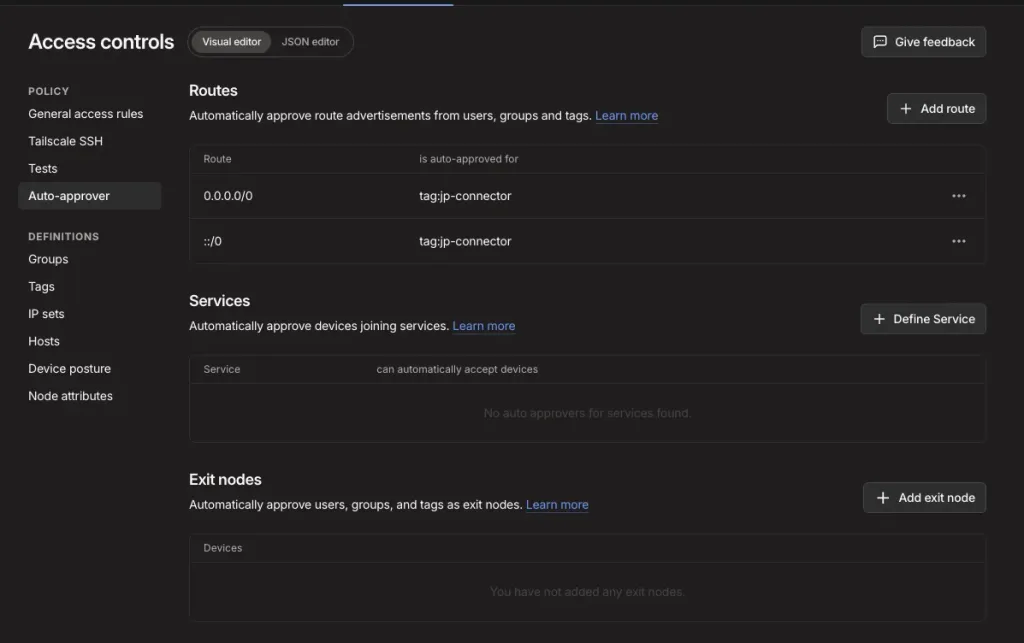
Those routes look very broad. In the context of an App Connector, however, they allow the connector tag to approve routes discovered from the app’s domains. Tailscale’s documentation notes that custom app routes require autoApprovers.
General access rules
Go to:
Access controls -> Visual editor -> General access rules -> Add ruleAdd two rules:
| Source | Destination | Port and protocol |
|---|---|---|
| All users and devices | tag:jp-connector |
tcp:53, udp:53, tcp:37155, udp:37155 |
| All users and devices | autogroup:internet |
All ports and protocols |
The first rule lets devices that use the App Connector reach tag:jp-connector. Tailscale’s documentation identifies tcp:53 and udp:53 as the minimum required for DNS discovery.

The second rule lets those devices reach autogroup:internet through Tailscale. Without it, the domains and connector can be configured correctly while the actual outbound traffic still fails.

Create the App Connector
Once the connector VM, auto approvers, and access rules are ready, create the app itself. This is the step that determines which domains use the Japanese egress point.
- Open Apps or App Connectors in the Tailscale admin console
- Add an app—for example,
openai - Assign the connector tag, such as
tag:jp-connector - Enter the OpenAI and ChatGPT-related domains
- Make sure each client that needs the connector accepts routes
The Apps page should now show the app name, domains, connector, and status. Check three things in particular: the OpenAI domains are grouped in the same app, the connector points to the machine handling egress, and the status is Active.
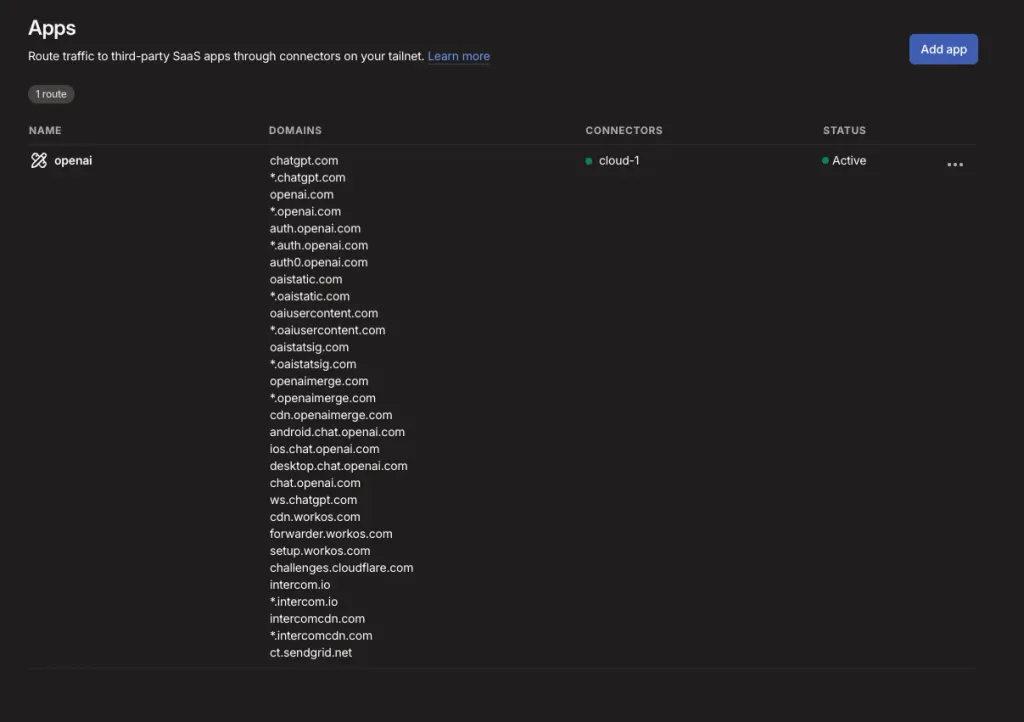
This is the domain list currently in my App Connector:
chatgpt.com
*.chatgpt.com
openai.com
*.openai.com
auth.openai.com
*.auth.openai.com
auth0.openai.com
oaistatic.com
*.oaistatic.com
oaiusercontent.com
*.oaiusercontent.com
oaistatsig.com
*.oaistatsig.com
openaimerge.com
*.openaimerge.com
cdn.openaimerge.com
android.chat.openai.com
ios.chat.openai.com
desktop.chat.openai.com
chat.openai.com
ws.chatgpt.com
cdn.workos.com
forwarder.workos.com
setup.workos.com
intercom.io
*.intercom.io
intercomcdn.com
*.intercomcdn.com
ct.sendgrid.net
developers.openai.com
Services change, so don’t treat this post as an evergreen domain list. A better approach is to start with OpenAI’s ChatGPT network recommendations and update the connector as needed.
Make sure clients accept routes
An App Connector relies on clients accepting the routes Tailscale distributes.
Most desktop apps expose this setting in the Tailscale preferences. On a Linux client, you may need to enable it manually:
sudo tailscale set --accept-routes=trueIf a Linux client needs to use the App Connector, this setting must be enabled.
Phones and Macs are usually straightforward. But if one device stubbornly refuses to use the connector, check each of these:
- Is Tailscale connected?
- Is a full exit node selected? It should be
Nonefor this setup - Is the client accepting routes?
- Do the ACLs or Grants allow the device to use the connector?
- Is the domain actually included in the App Connector?
- Is an old DNS result still cached?
Verify that traffic uses the connector
Start by checking that the connector is Active on the Apps page. That only confirms the connector is online, though—it doesn’t prove every domain is taking the right path.
For a more direct check, watch traffic on the Oracle VM:
sudo tcpdump -ni tailscale0 -vv '(port 443 or port 53)'Then open chatgpt.com on your phone or computer. If the configuration is correct, you should see related DNS or HTTPS traffic passing through the VM.
Next, open an unrelated site such as example.com. Ordinary sites shouldn’t pass through the connector. If they do, you may still have a full exit node selected, or your routes may be broader than intended.
Why this feels better than a traditional VPN
For me, the biggest difference is mental overhead.
The usual VPN loop looks like this:
Need a service -> Turn on VPN -> Forget to turn it off ->
Other services slow down or use the wrong route
Tailscale with an App Connector looks like this:
Leave Tailscale connected -> Ordinary traffic stays local ->
OpenAI traffic automatically uses oracle-jp
I don’t need to wonder whether the VPN is on, and I don’t have to hand the whole machine’s traffic to one remote egress point.
This fits my HomeLab particularly well because the Mac mini, work laptop, and phone already stay connected to the tailnet. Tailscale isn’t a temporary VPN in my setup; it’s the underlying network.
How this differs from tinyproxy
I previously used tinyproxy as well. The setup was simple: run a proxy on an overseas VM, then set http_proxy and https_proxy locally so CLI tools would use it.
That works well for tools such as Copilot CLI and opencode that respect proxy environment variables.
But it doesn’t cover everything, including:
- Desktop apps such as Codex Desktop
- Mobile apps
Why I like this setup
My favourite part of Tailscale is that it makes the VPN disappear from the daily workflow.
I don’t switch apps every time I open ChatGPT, and I don’t send the entire Mac through Japan. I define the OpenAI-related domains as one app and route that app through oracle-jp. My other HomeLab services continue to use the tailnet, while ordinary websites connect directly.
That kind of precise control is what makes Tailscale so interesting in a personal HomeLab.
If you already have a free Oracle Cloud VM and region restrictions keep interrupting your workflow, this approach is worth trying. It’s lighter than a traditional site-to-site VPN and more centralised than a manual proxy. Most importantly, it removes one more “oh, I forgot to turn on the VPN” moment.